2023年7月

写一个有参数的 Linux 内核模块

本文讲写一个简单的hello world 内核模块, 但是可以设置参数.

本系列:

  1. 写一个 Linux 内核 hello world 模块
  2. 写一个有依赖的Linux 内核模块

源代码

#include <linux/init.h>
#include <linux/module.h>
#include <linux/kernel.h>
#include <linux/moduleparam.h>

MODULE_LICENSE("GPL");

// 定义模块参数变量
static char* name = "John";
static int age = 30;

// 注册模块参数
module_param(name, charp, S_IRUGO);
MODULE_PARM_DESC(name, "Name parameter");
module_param(age, int, S_IRUGO);
MODULE_PARM_DESC(age, "Age parameter");

// 模块初始化函数
static int __init hello_init(void) {
    printk(KERN_INFO "Hello, %s! Your age is %d.\n", name, age);
    return 0;
}

// 模块退出函数
static void __exit hello_exit(void) {
    printk(KERN_INFO "Goodbye, %s!\n", name);
}

// 注册模块初始化和退出函数
module_init(hello_init);
module_exit(hello_exit);

Makefile

obj-m += hello.o

tag ?= `uname -r`
KDIR := /lib/modules/${tag}/build/

all:
    make -C $(KDIR) M=$(PWD) modules

clean:
    make -C $(KDIR) M=$(PWD) clean

编译并执行

$ make all 

$ sudo insmod hello.ko

$ tail -n 1 /var/log/syslog
Jul 11 01:27:56 supra kernel: [ 8683.334440] Hello, Eric! Your age is 35.

查看内核模块参数

$ cat /sys/module/hello/parameters/age
35
$ cat /sys/module/hello/parameters/name
Eric

改变内核模块参数

$ sudo echo 28 > /sys/module/hello/parameters/age
bash: /sys/module/hello/parameters/age: Permission denied

上面的权限问题, 是由于我们设置的参数权限导致的: S_IRUGO, 可以改它为 0660 就可以了.

写一个 Linux 内核 hello world 模块

本文介绍如何一步步写一个 Linux 内核 hello world 模块.

内核模块分类

分为如下2类:

  1. Builtin modules 内置模块, 包含在 Linux image 里面
  2. External modules 外部模块, 可以随时加载/卸载的内核模块.
    本文例子中的模块属于 外部模块.

Kernel Build System

更多 Linux 内核 Kbuild 系统的更多信息, 参看官方文档.

hello world 内核模块

创建一个 hello.c 文件. 源代码如下:

#include <linux/module.h>
#include <linux/kernel.h>
#include <linux/init.h>

static int __init hello_init(void)
{
    printk(KERN_ALERT "hello world\n");
    return 0;
}

static void __exit hello_exit(void)
{
    printk(KERN_ALERT "goodbye\n");
}

module_init(hello_init);
module_exit(hello_exit);

MODULE_DESCRIPTION("my first module");
MODULE_LICENSE("free");
MODULE_AUTHOR("Eric Tian");

设置内核 build 环境

安装 Kernel header: 找到对应的包, 然后安装, 然后查看安装的包.

$ apt search linux-headers-$(uname -r)
$ sudo apt install linux-headers-$(uname -r)

$ file /lib/modules/$(uname -r)/build
/lib/modules/5.15.92/build: symbolic link to /home/supra/work/jammy/jammy-Ubuntu-5.15.0-70.77-test

Makefile

在 hello.c 相同的目录, 创建一个新文件 Makefile. 内容如下, 缩进符号使用 tab.

obj-m += hello.o

tag ?= `uname -r`
KDIR := /lib/modules/${tag}/build/

all:
    make -C $(KDIR) M=$(PWD) modules

clean:
    make -C $(KDIR) M=$(PWD) clean

编译运行

$ make clean
$ make all
make -C /lib/modules/`uname -r`/build/ M=/home/supra/work/c/kernel modules
make[1]: Entering directory '/usr/src/linux-headers-5.15.0-76-generic'
  CC [M]  /home/supra/work/c/kernel/hello.o
  MODPOST /home/supra/work/c/kernel/Module.symvers
  CC [M]  /home/supra/work/c/kernel/hello.mod.o
  LD [M]  /home/supra/work/c/kernel/hello.ko
  BTF [M] /home/supra/work/c/kernel/hello.ko
Skipping BTF generation for /home/supra/work/c/kernel/hello.ko due to unavailability of vmlinux
make[1]: Leaving directory '/usr/src/linux-headers-5.15.0-76-generic'

查看模块信息

$ modinfo hello.ko
modinfo hello.ko
filename:       /home/supra/work/c/kernel/hello.ko
author:         Eric Tian
license:        free
description:    my first module
srcversion:     01F8F75DC7D8708707AA062
depends:
retpoline:      Y
name:           hello
vermagic:       5.15.0-76-generic SMP mod_unload modversions

运行模块

$ sudo insmod hello.ko
insmod: ERROR: could not insert module hello.ko: Operation not permitted

虽然你用了 sudo, 仍然得到上面的错误, 原因很可能是: Check if your system has secure boot enabled, which can prevent loading unsigned kernel modules. Disable secure boot in your system's BIOS/UEFI settings and try again.

解决上述问题后, 执行 insmod 然后通过 dmesg 查看日志信息.

$ sudo insmod hello.ko
$ sudo dmesg 

[  176.149789] hello: loading out-of-tree module taints kernel.
[  176.149794] hello: module license 'free' taints kernel.
[  176.149794] Disabling lock debugging due to kernel taint
[  176.149815] hello: module verification failed: signature and/or required key missing - tainting kernel
[  176.150529] hello world

查看加载的模块信息

$ lsmod | grep hello
Module                    Size   Used by
hello                  16384  0

$ sudo cat /proc/modules | grep hello
hello 16384 0 - Live 0xffffffffc0797000 (POE)

卸载模块 并查看 exit 日志

$ sudo rmmod hello
$ tail -n 10 /var/log/syslog
Jul 10 12:16:14 supra kernel: [  596.219986] goodbye

写一个有依赖的Linux 内核模块

接上一篇 写一个 Linux内核 hello world 模块, 这次我们写2个内核模块 hello & world, 并且 world 模块依赖于 hello 模块.

hello 模块

源代码: hello.c

#include <linux/module.h>
#include <linux/init.h>

static int __init hello_init(void)
{
        pr_info("hello module is loaded\n");
        return 0;
}

static void __exit hello_exit(void)
{
        pr_info("hello module is unloaded\n");
}

void say_hello(void)
{
        pr_info("hello ");
}

EXPORT_SYMBOL(say_hello);

module_init(hello_init);
module_exit(hello_exit);
MODULE_LICENSE("free");

world 模块

源代码: world.c

#include <linux/module.h>
#include <linux/init.h>

void say_hello(void);

static int __init world_init(void)
{
        pr_info("world module is loaded\n");
    say_hello();
        pr_info("world\n");
        return 0;
}

static void __exit world_exit(void)
{
        pr_info("world module is unloaded\n");
}

module_init(world_init);
module_exit(world_exit);
MODULE_LICENSE("free");

Makefile

源代码: Makefile. 缩进使用 tab.

obj-m := world.o hello.o

KDIR := /lib/modules/`uname -r`/build/
PWD := $(shell pwd)

default:
    $(MAKE) -C $(KDIR) M=$(PWD) modules

clean:
    $(MAKE) -C $(KDIR) M=$(PWD) clean

编译模块

$ make
make -C /lib/modules/`uname -r`/build/ M=/home/supra/work/modules/deps modules
make[1]: Entering directory '/home/supra/work/jammy/jammy-Ubuntu-5.15.0-70.77-test'
  CC [M]  /home/supra/work/modules/deps/world.o
  CC [M]  /home/supra/work/modules/deps/hello.o
  MODPOST /home/supra/work/modules/deps/Module.symvers
  CC [M]  /home/supra/work/modules/deps/hello.mod.o
  LD [M]  /home/supra/work/modules/deps/hello.ko
  BTF [M] /home/supra/work/modules/deps/hello.ko
  CC [M]  /home/supra/work/modules/deps/world.mod.o
  LD [M]  /home/supra/work/modules/deps/world.ko
  BTF [M] /home/supra/work/modules/deps/world.ko
make[1]: Leaving directory '/home/supra/work/jammy/jammy-Ubuntu-5.15.0-70.77-test'

加载模块

$ sudo insmod hello.ko

$ tail -n 1  /var/log/syslog
Jul 10 14:15:22 supra kernel: [ 3313.748762] hello module is loaded

$ sudo cat /proc/modules | grep hello
hello 16384 0 - Live 0xffffffffc0797000 (POE)

$ sudo insmod world.ko

$ tail -n 3 /var/log/syslog
Jul 10 14:19:22 supra kernel: [ 3553.077383] world module is loaded
Jul 10 14:19:22 supra kernel: [ 3553.077385] hello
Jul 10 14:19:22 supra kernel: [ 3553.077386] world

$ sudo cat /proc/modules | grep hello
hello 16384 1 world, Live 0xffffffffc0797000 (POE)

查看模块依赖

$ lsmod | grep hello
hello                  16384  1 world

$ lsmod | grep world
world                  16384  0
hello                  16384  1 world

相反顺序卸载模块

$ sudo rmmod world.ko
$ sudo rmmod hello.ko

$ tail -n 2 /var/log/syslog
Jul 10 14:26:00 supra kernel: [ 3949.339943] world module is unloaded
Jul 10 14:26:05 supra kernel: [ 3954.185122] hello module is unloaded

Ubuntu 编译 Linux 内核并从新内核启动

本文在一个 VirtualBox 的 Ubuntu VM 里编译新的Linux Kernel, 然后安装新kernel和模块, 然后更改系统从新内核启动.

下载 Linux 内核

可以选择从各种发布版本下载, 也可以选择从 github.com 下载. 下面选择从 Ubuntu 下载

$ git clone --depth 1 -b master git://git.launchpad.net/~ubuntu-kernel/ubuntu/+source/linux/+git/jammy

编译

要编译内核, 先安装必要的工具:

$ sudo apt update 
$ sudo apt upgrade -y 
$ sudo apt install git fakeroot build-essential ncurses-dev xz-utils libssl-dev bc flex bison libelf-dev -y

然后编译

$ cd jammy # 进入文件夹
$ make help  # 查看 make 命令
$ make menuconfig # 更改配置, 并保存
$ ls -lah .config # 查看 .config 文件

$ make all -j 8

Kernel: arch/x86/boot/bzImage is ready  (#1)

$ ls arch/x86/boot/bzImage # 查看 bzImage
-rw-rw-r-- 1 supra supra 11M Jul  1 11:40 arch/x86/boot/bzImage

$ find . -name *.ko # 查看新生成的模块

安装模块前 查看 /lib/modules/ 文件夹

$ ls -lah /lib/modules/
drwxr-xr-x  3 root root 4.0K Jul  1 10:40 .
drwxr-xr-x 88 root root 4.0K Jul  1 11:07 ..
drwxr-xr-x  5 root root 4.0K Jul  1 10:40 5.15.0-76-generic

安装之前查看 /boot/ 目录

$ uname -r # 查看当前运行的 kernel 版本
5.15.0-76-generic

$ ls -lah /boot/
drwxr-xr-x  4 root root 4.0K Jul  1 11:07 .
drwxr-xr-x 19 root root 4.0K Jul  1 10:45 ..
-rw-------  1 root root 6.0M Jun 15 17:47 System.map-5.15.0-76-generic
-rw-r--r--  1 root root 256K Jun 15 17:47 config-5.15.0-76-generic
drwxr-xr-x  5 root root 4.0K Jul  1 10:40 grub
lrwxrwxrwx  1 root root   28 Jul  1 10:40 initrd.img -> initrd.img-5.15.0-76-generic
-rw-r--r--  1 root root 106M Jul  1 11:07 initrd.img-5.15.0-76-generic
lrwxrwxrwx  1 root root   28 Jul  1 10:40 initrd.img.old -> initrd.img-5.15.0-76-generic
drwx------  2 root root  16K Jul  1 10:37 lost+found
lrwxrwxrwx  1 root root   25 Jul  1 10:40 vmlinuz -> vmlinuz-5.15.0-76-generic
-rw-------  1 root root  12M Jun 15 18:21 vmlinuz-5.15.0-76-generic
lrwxrwxrwx  1 root root   25 Jul  1 10:40 vmlinuz.old -> vmlinuz-5.15.0-76-generic

安装 kernel 模块和 kernel image

安装 kernel 模块

$ sudo make INSTALL_MOD_STRIP=1 modules_install

$ ls -lah /lib/modules/ # 可以看到多了一个目录, 我们新编译安装的版本
drwxr-xr-x  4 root root 4.0K Jul  1 11:56 .
drwxr-xr-x 88 root root 4.0K Jul  1 11:07 ..
drwxr-xr-x  5 root root 4.0K Jul  1 10:40 5.15.0-76-generic
drwxr-xr-x  3 root root 4.0K Jul  1 11:58 5.15.92

安装新 kernel image

$ sudo make install

$ ls -lah /boot/ #查看 /boot/ 文件夹, 看到多了一个版本的一份: 5.15.92
drwxr-xr-x  4 root root 4.0K Jul  1 12:00 .
drwxr-xr-x 19 root root 4.0K Jul  1 10:45 ..
-rw-------  1 root root 6.0M Jun 15 17:47 System.map-5.15.0-76-generic
-rw-r--r--  1 root root 5.6M Jul  1 11:59 System.map-5.15.92
-rw-r--r--  1 root root 256K Jun 15 17:47 config-5.15.0-76-generic
-rw-r--r--  1 root root 184K Jul  1 11:59 config-5.15.92
drwxr-xr-x  5 root root 4.0K Jul  1 12:00 grub
lrwxrwxrwx  1 root root   18 Jul  1 12:00 initrd.img -> initrd.img-5.15.92
-rw-r--r--  1 root root 106M Jul  1 11:07 initrd.img-5.15.0-76-generic
-rw-r--r--  1 root root  99M Jul  1 12:00 initrd.img-5.15.92
lrwxrwxrwx  1 root root   28 Jul  1 10:40 initrd.img.old -> initrd.img-5.15.0-76-generic
drwx------  2 root root  16K Jul  1 10:37 lost+found
lrwxrwxrwx  1 root root   15 Jul  1 11:59 vmlinuz -> vmlinuz-5.15.92
-rw-------  1 root root  12M Jun 15 18:21 vmlinuz-5.15.0-76-generic
-rw-r--r--  1 root root  11M Jul  1 11:59 vmlinuz-5.15.92
lrwxrwxrwx  1 root root   25 Jul  1 10:40 vmlinuz.old -> vmlinuz-5.15.0-76-generic

更新 grub

系统启动整体步骤如下:
BIOS -> GRUB -> vmlinuz -> initrd -> rootfs.

grub 核心部分

安装新 Kernel 之后, 要更新 GRUB 的配置. GRUB 的文件都在 /boot/grub/ 目录, 配置文件: /boot/grub/grub.cfg, kernel 模块和GRUB的 image 都在 /boot/grub/i386-pc 目录.

$ find /boot/grub/ -name *.img
/boot/grub/i386-pc/core.img
/boot/grub/i386-pc/boot.img

$ find /boot/grub/ -name *.mod

grub 配置

查看 /boot/grub/grub.cfg 我们可以看到我们新安装的 kernel 版本 5.15.92 已经在里面某个 menuentry 了, 这是在上面 make install 更新的.

$ cat /boot/grub/grub.cfg
    menuentry 'Ubuntu, with Linux 5.15.92' --class ubuntu --class gnu-linux --class gnu --class os $menuentry_id_option 'gnulinux-5.15.92-advanced-84148117-53b4-4df1-bd78-8dd5d40c41da' {
        recordfail
        load_video
        gfxmode $linux_gfx_mode
        insmod gzio
        if [ x$grub_platform = xxen ]; then insmod xzio; insmod lzopio; fi
        insmod part_gpt
        insmod ext2
        set root='hd0,gpt2'
        if [ x$feature_platform_search_hint = xy ]; then
          search --no-floppy --fs-uuid --set=root --hint-bios=hd0,gpt2 --hint-efi=hd0,gpt2 --hint-baremetal=ahci0,gpt2  bea48426-830f-4bb9-9c08-f537663c02e6
        else
          search --no-floppy --fs-uuid --set=root bea48426-830f-4bb9-9c08-f537663c02e6
        fi
        echo    'Loading Linux 5.15.92 ...'
        linux    /vmlinuz-5.15.92 root=/dev/mapper/ubuntu--vg-ubuntu--lv ro
        echo    'Loading initial ramdisk ...'
        initrd    /initrd.img-5.15.92

修改 grub 启动项

稍后如果我们重启, 就能在启动的时候选择我们新版本的kernel 了, 但是重启之前, 需要修改配置文件/etc/default/grub. 把 GRUB_TIMEOUT_STYLE=hidden 注释掉, 把 GRUB_TIMEOUT改成50秒.

  GRUB_DEFAULT=0
  # GRUB_TIMEOUT_STYLE=hidden
  GRUB_TIMEOUT=50

更新上面的配置文件后, 需要运行下面的命令更新 GRUB:

$ sudo update-grub
Sourcing file `/etc/default/grub'
Sourcing file `/etc/default/grub.d/init-select.cfg'
Generating grub configuration file ...
Found linux image: /boot/vmlinuz-5.15.92
Found initrd image: /boot/initrd.img-5.15.92
Found linux image: /boot/vmlinuz-5.15.0-76-generic
Found initrd image: /boot/initrd.img-5.15.0-76-generic
Warning: os-prober will not be executed to detect other bootable partitions.
Systems on them will not be added to the GRUB boot configuration.
Check GRUB_DISABLE_OS_PROBER documentation entry.
done

最后重启:

$ sudo reboot

验证新kernel 版本

回到 VirtualBox 界面, 我们可以看到启动的界面, 可以选择 Advanced 菜单, 然后可以看到选择 kernel 界面:
grub.png

其中每一项代表 /boot/grub/grub.cfg的一个 menuentry. 选择我们的新kernel 然后启动.
Mac 安装 VirtualBox, 创建 Ubuntu 虚拟机

为了学习 Linux Kernel 的准备工作, 要在本地安装 VirtualBox, 然后使用虚拟机. 即使把VM搞挂, 也不用担心.

MAC 安装 VirtualBox

  1. https://www.virtualbox.org/wiki/Downloads 下载合适的安装包.
  2. 双击下载的 dmg 文件, 按照步骤一步步安装.
  3. 启动 VirtualBox 程序.

VirtualBox 安装 Ubuntu

  1. https://ubuntu.com/download/server 下载 Ubuntu ISO image(我选的服务器版本, 不是桌面版).
  2. 在 VirtualBox 界面上面的菜单中 点击 New(新建), 填入名字, 选择ISO 文件, 下一步(next)
    portForward.png
  3. 设置 用户名/密码, 设置内存/CPU/虚拟磁盘, 查看设置, 完成. 过程中, MAC 可能问你要一些权限, 给.
  4. 然后安装 Ubuntu: 选择语言, 键盘, 一路next, 最后 安装完成. 选择 “reboot now”.
    在上面的步骤里, 其中有一步是 安装 ssh server, 注意要手动选上, 后面可以直接本地 ssh.
  5. 启动后, 输入刚才设置的 用户名/密码 就能登录了.

本地 ssh 连接

虽然上面是安装的服务器版本, 但是直接从 VirtualBox 的界面操作还是不方便, 最好是本地ssh 连接. 上面的安装步骤里 已经选择了安装 ssh 服务器, 如果你没有安装, 可以从 VirtualBox 的界面登录进入, 安装 ssh 服务.

要本地ssh进入, 必须设置本地 host 到 VM 的端口转发.
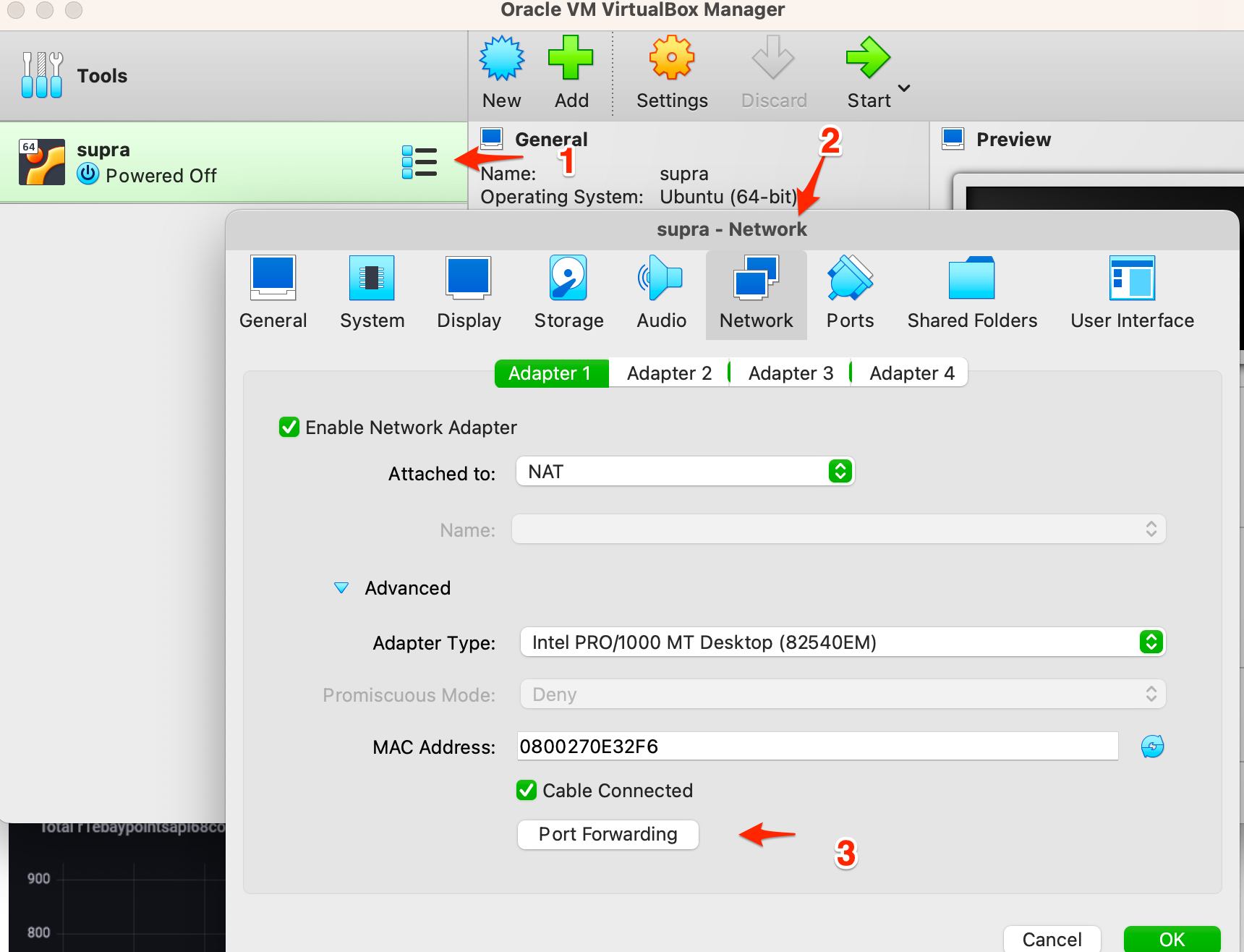
设置端口转发步骤如下:

  1. 如果虚拟机没有 power off, 先 power off shutdown now.
  2. 进入 VirtualBox 界面, 选择虚拟机, 右键, 点击设置(Settings), 然后选择 网络(network), 点开高级(Advanced), 点击 端口转发(Port Forwarding)
    portForward.png
  3. 点击 添加 按钮, 添加名字, 主机端口, Guest 端口, 其它留空. 点击 OK 保存.
    forwordDetail.png
  4. 双击 VM 启动VM.
  5. 然后本地 命令行 登录. 端口是刚才设置的, 用户名是VM的登录用户名.

     $ ssh -p 2222 supra@localhost